







































You are looking at the documentation of a prior release. To read the documentation of the latest release, please
visit here.
Enable Feature Sets on General, Hub, and Spoke Clusters
A Feature Set is a group of product capabilities (for example Backup & Recovery or Databases) that you can enable on a cluster. Where you enable it depends on what kind of cluster you are working with, so first identify the cluster type, then follow the matching steps below.
Cluster types
Every cluster you add to the platform is one of three types.
| General cluster | Hub cluster | Spoke cluster | |
|---|---|---|---|
| What it is | A standalone cluster managed on its own | The central cluster that manages other clusters | A cluster connected to a hub and managed from it |
| Connected to a hub? | No | It is the hub | Yes |
| Typical role | Runs workloads; managed individually | Control plane for the fleet; stores cluster state and distributes applications and policies | Runs workloads; receives configuration from the hub |
| How it is created | Import a cluster without selecting a hub | Enable the Multicluster Hub feature set. See Hub UI | Import with a hub selected, or enable Multicluster Spoke. See Create a Spoke Cluster |
| Feature sets are enabled | On that cluster, one cluster at a time | On the hub only | From the hub, per ClusterSet |
| Scope of one change | That cluster | The hub only | Every spoke in the ClusterSet |
- ClusterSet: a named group of spoke clusters. Spoke feature sets are enabled per ClusterSet, not per individual spoke. See Cluster & Clusterset.
Which cluster type should I use?
Choose the type by how many clusters you manage and whether they should share configuration.
| If your situation is… | Use | Why |
|---|---|---|
| One cluster, or a few unrelated clusters you manage separately | General cluster | No hub to run or maintain; each cluster is configured on its own |
| Many clusters that should get the same features and policies | Hub + spokes | Configure once on the hub and it applies to every spoke in a ClusterSet |
| Clusters that need different feature sets (for example production and development) | Hub + spokes in separate ClusterSets | Each ClusterSet has its own feature sets |
Trade-off: a hub is an extra cluster to run, and spokes depend on it for feature changes. For a single cluster, a general cluster is simpler.
Where should I enable the feature on?
This docs refers two wordings : cluster-ui & hub-ui for the cluster views. So, Applying something on hub cluster means accessing 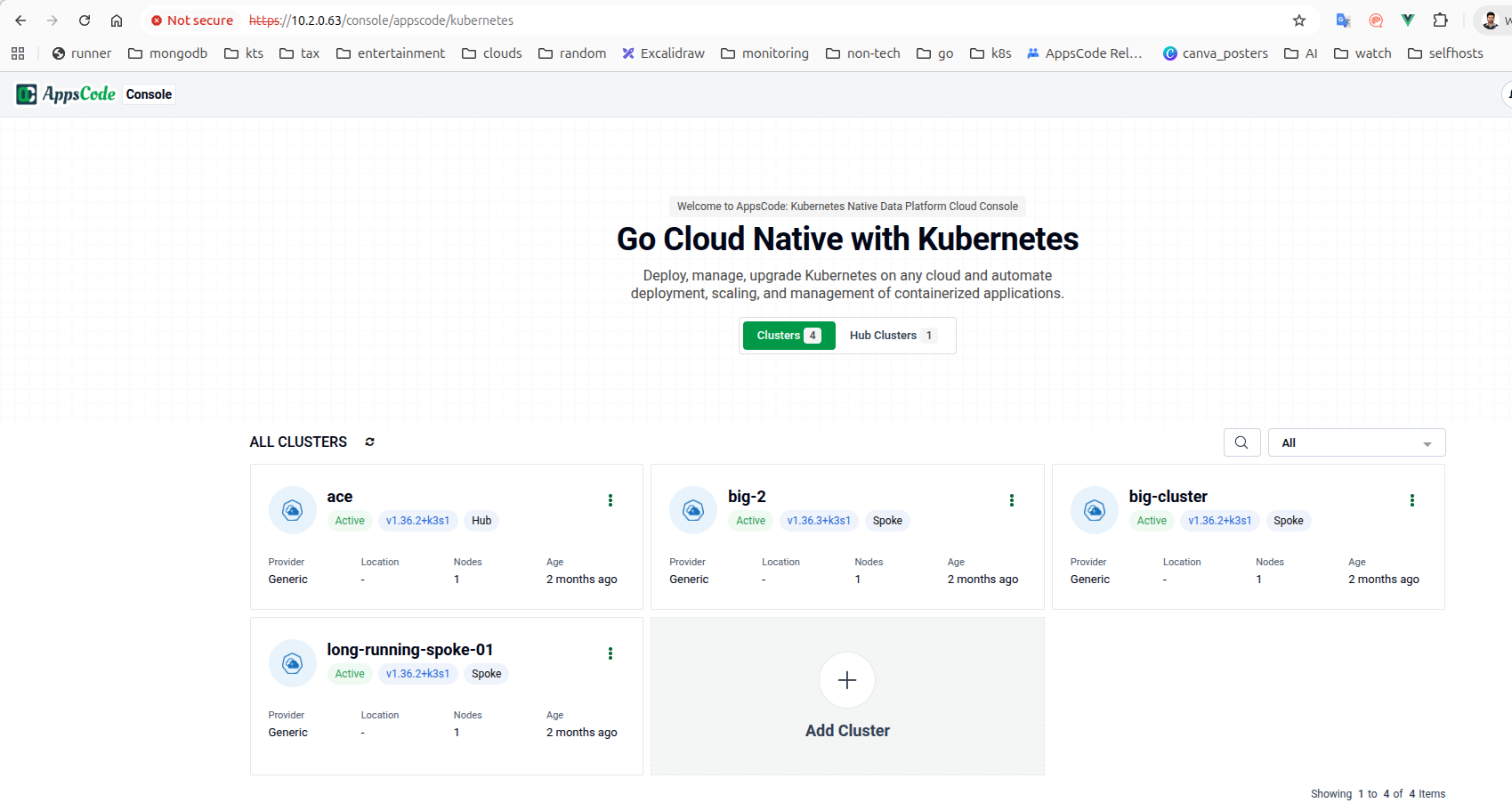 , But Applying something on hub ui (for its spokes obviously) means accessing
 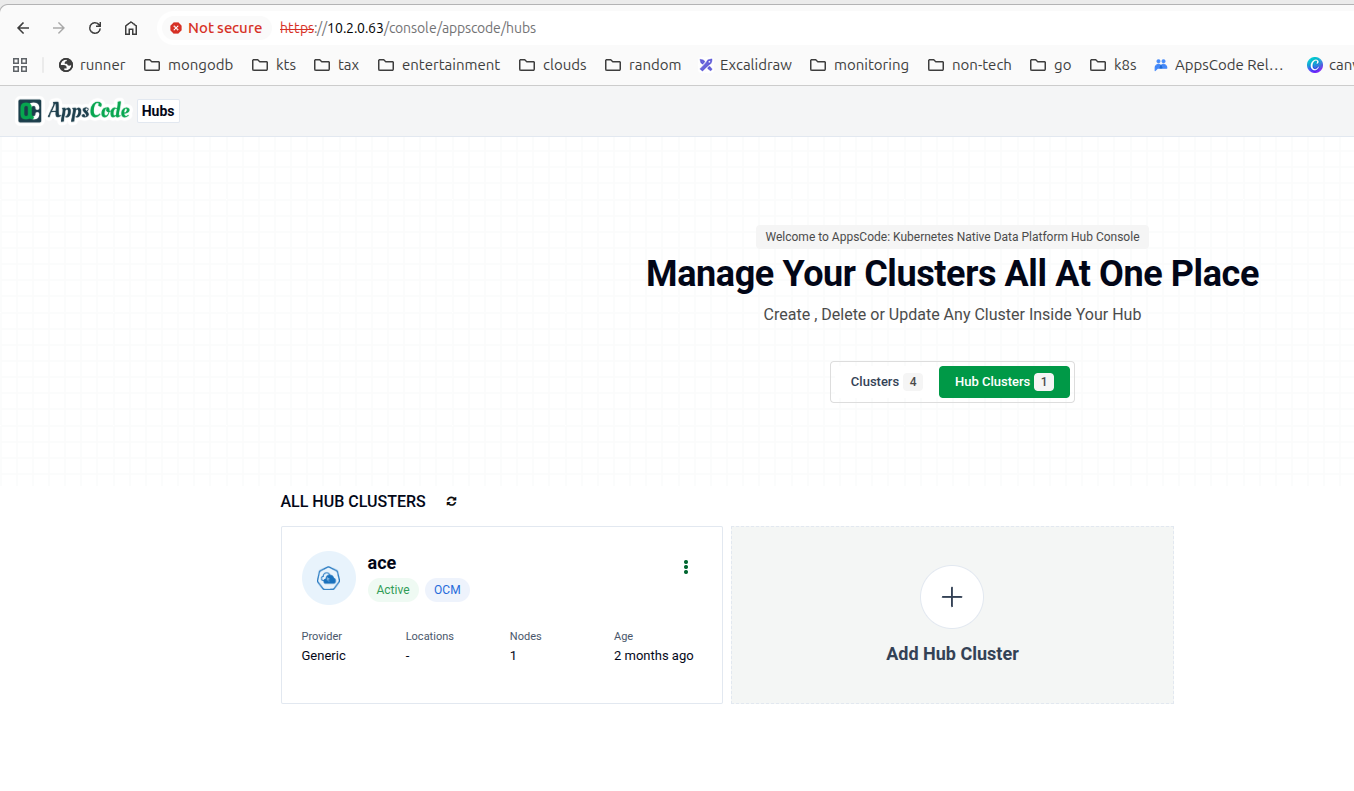 . See the switcher, that is the most important thing in this page.
| General cluster | Hub feature sets | Spoke feature sets | |
|---|---|---|---|
| Applies to | That cluster only | The hub cluster only | Every spoke in the selected ClusterSet |
| Where to open it | Cluster → Overview → Feature Sets | Hub cluster → Overview → Feature Sets | Hub UI → hub Overview → Cluster Sets → ClusterSet → feature set |
| Example | Enable Databases on a standalone cluster | Enable Backup & Recovery on the hub | Enable Config Syncer on all spokes in prod-set |
Enable a feature on the hub cluster
- Open your hub cluster. The Overview page has a Feature Sets section.
- Select the feature set you want, for example Backup & Recovery.
- On that feature set’s page, enable and configure the features you need.
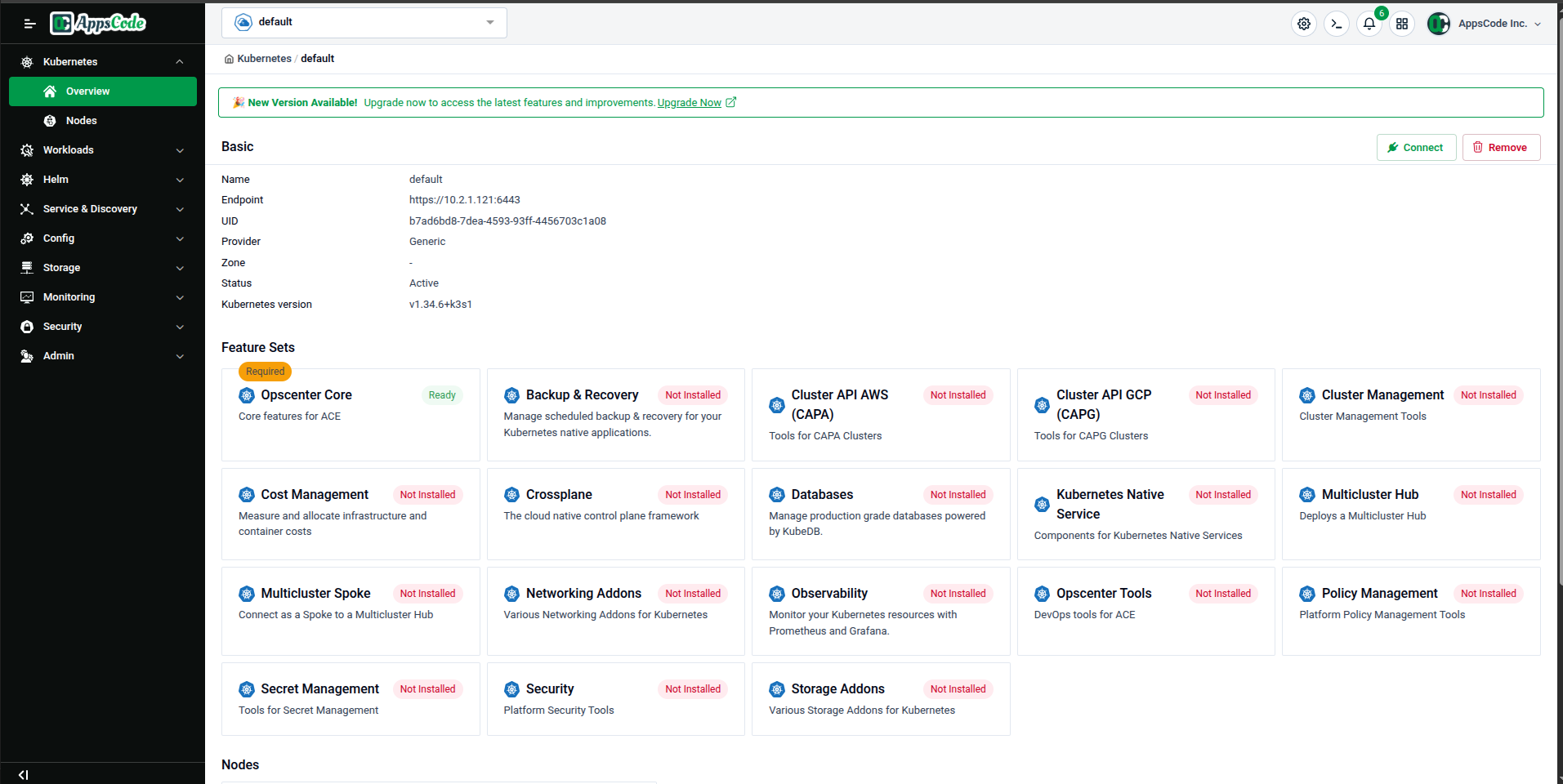
The full enable flow is the same as for any cluster. See Manage Feature Sets and Cluster Overview.
Enable a feature on spoke clusters
Spoke feature sets are managed from the hub, per ClusterSet.
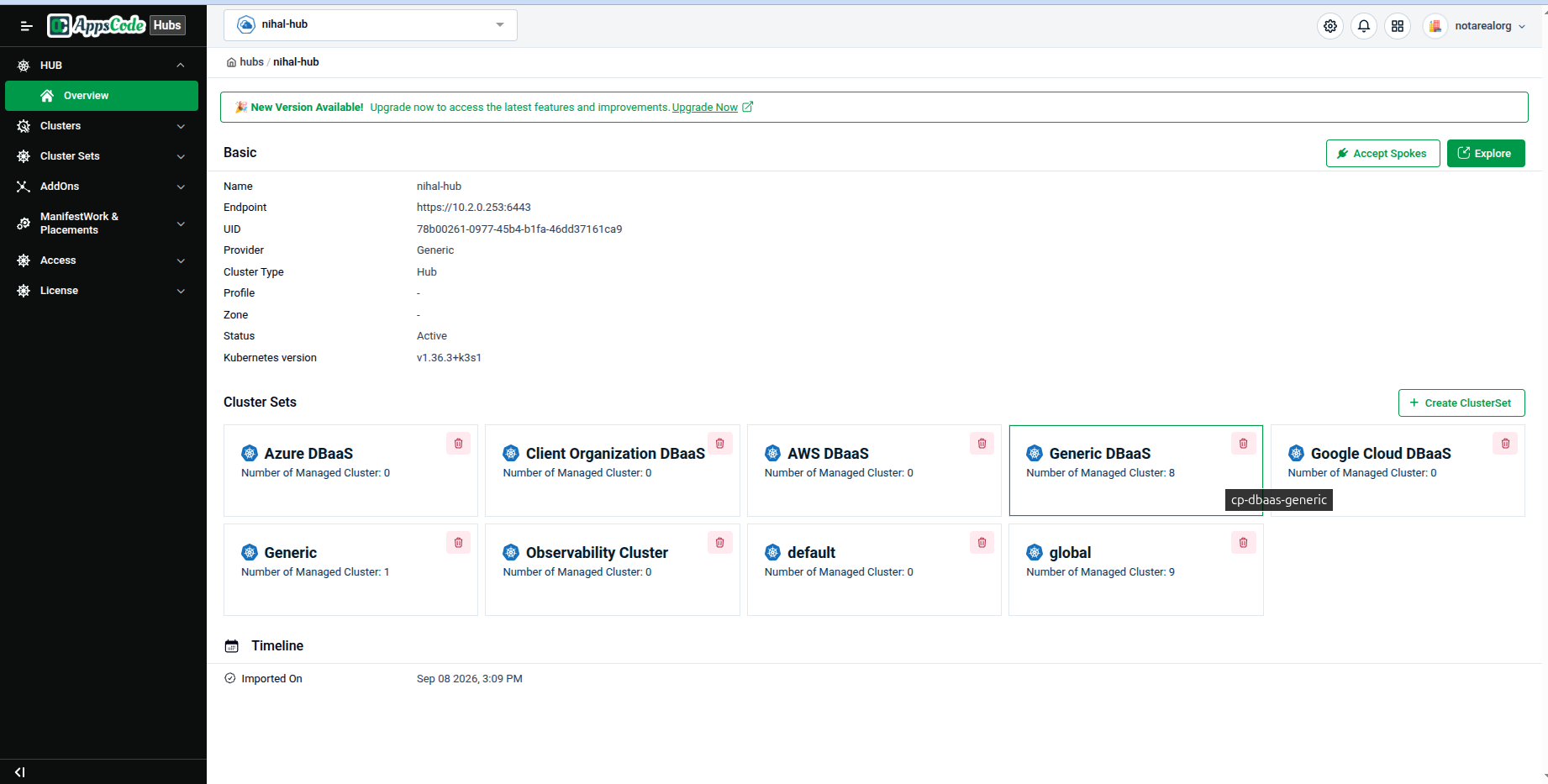
Open the hub in the Hub UI. The Overview page has a Cluster Sets section with one card per ClusterSet, showing its name and Number of Managed Cluster. Click the ClusterSet that contains your spokes.
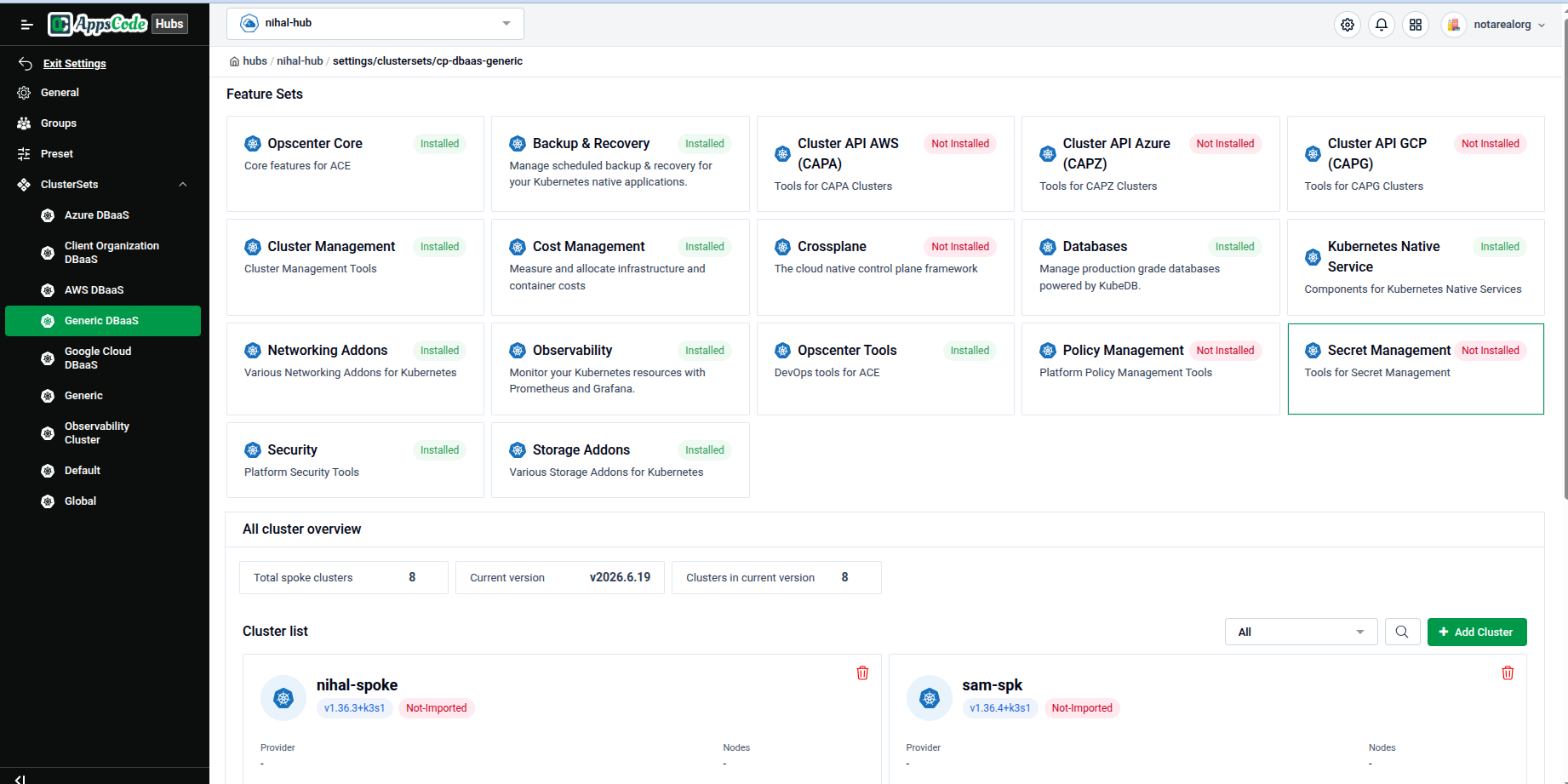
The ClusterSet’s Feature Sets page lists every feature set with an Installed or Not Installed badge. Below the cards, All cluster overview and the Cluster list show the spokes in this ClusterSet. Click the feature set you want, for example Secret Management (Not Installed).
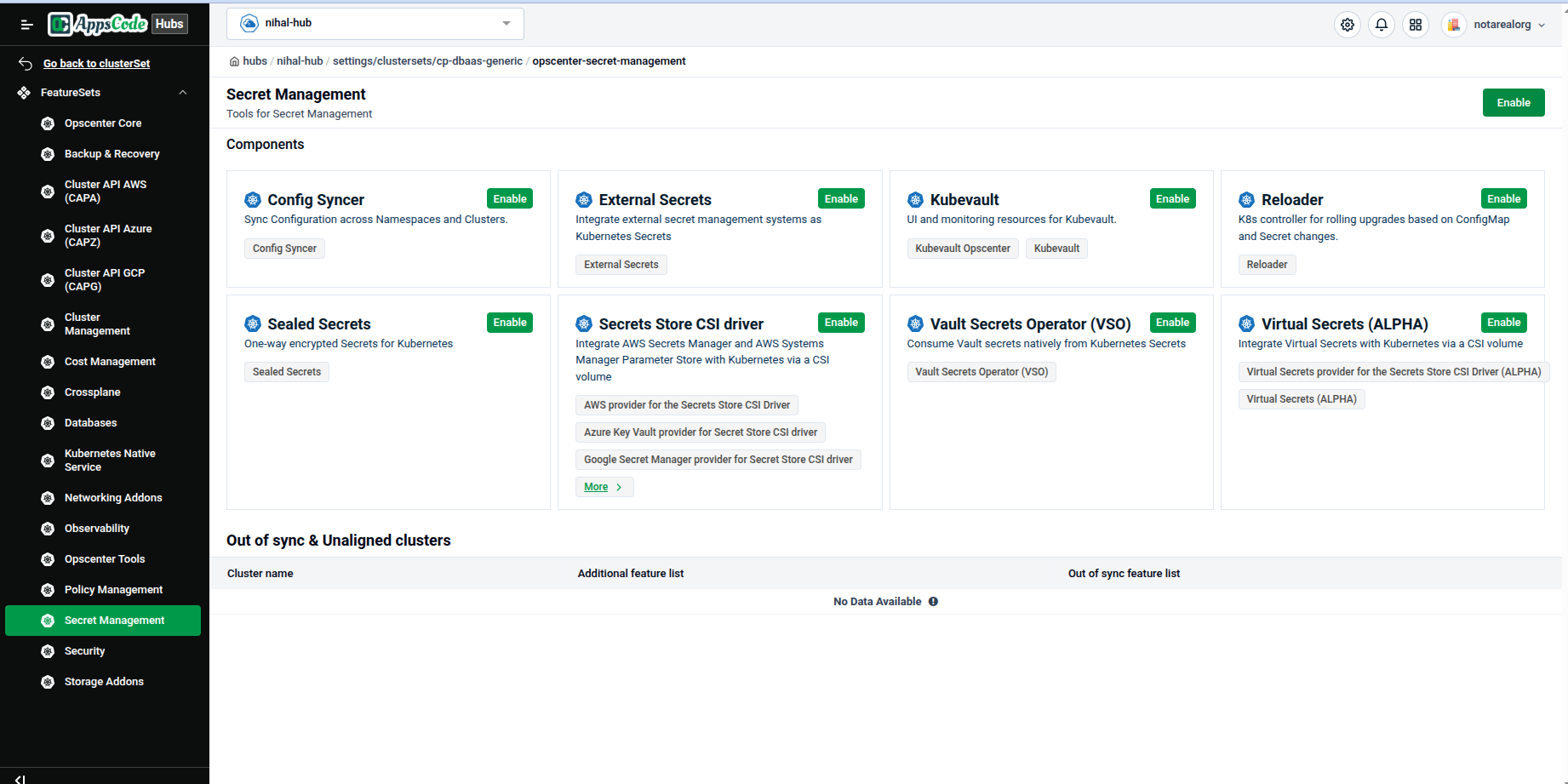
The feature set page lists its Components, for example Config Syncer, External Secrets and Reloader. Click Enable at the top right.
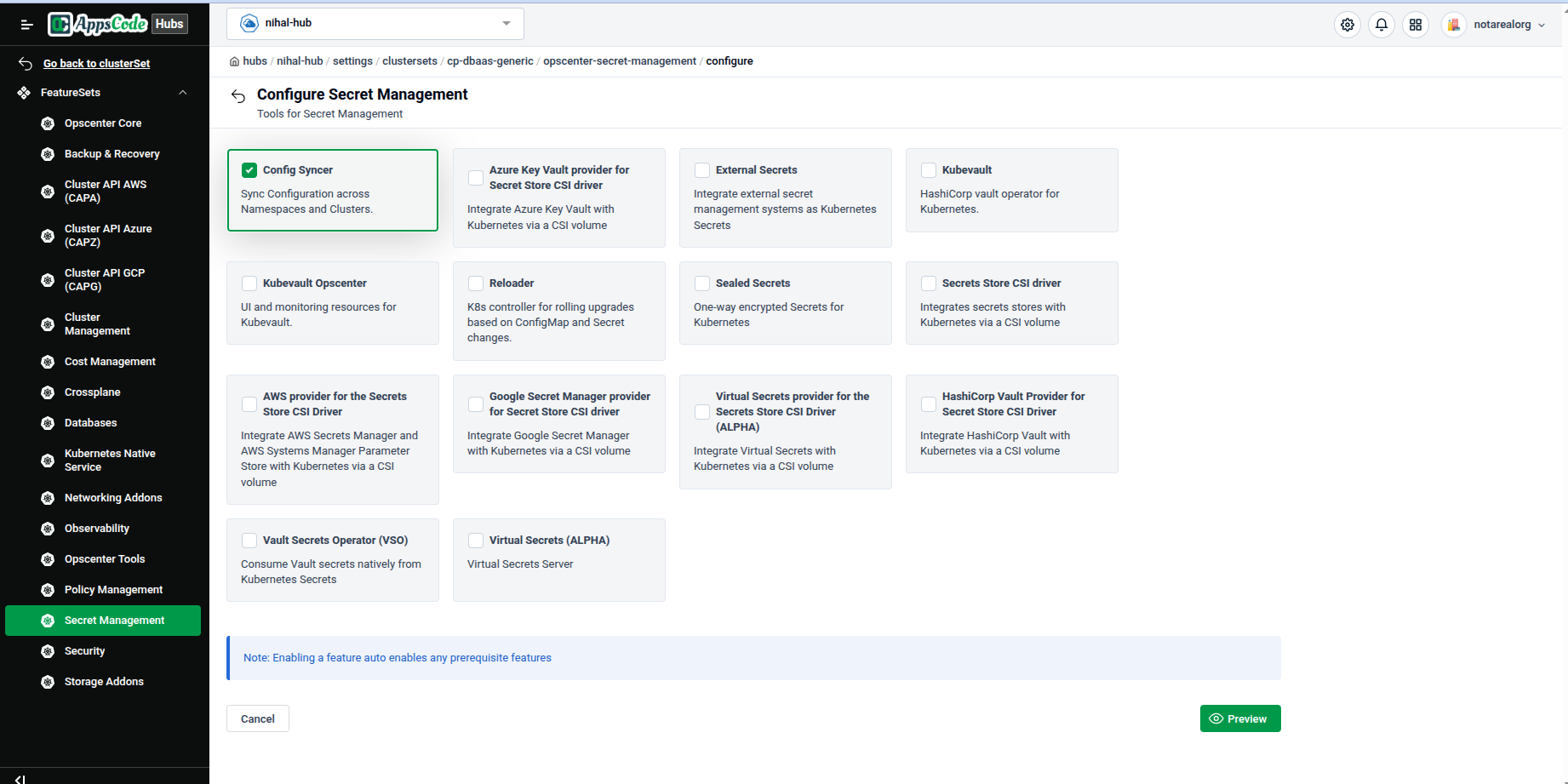
On the Configure page, tick the components you want to install. Enabling a component also enables any prerequisite components it needs. Click Preview, or Cancel to go back without changes.
Preview shows the
helm_release.yamlthat will be applied, in YAML or JSON with a Copy button. Review it, then click Submit. Click Previous to change your selection.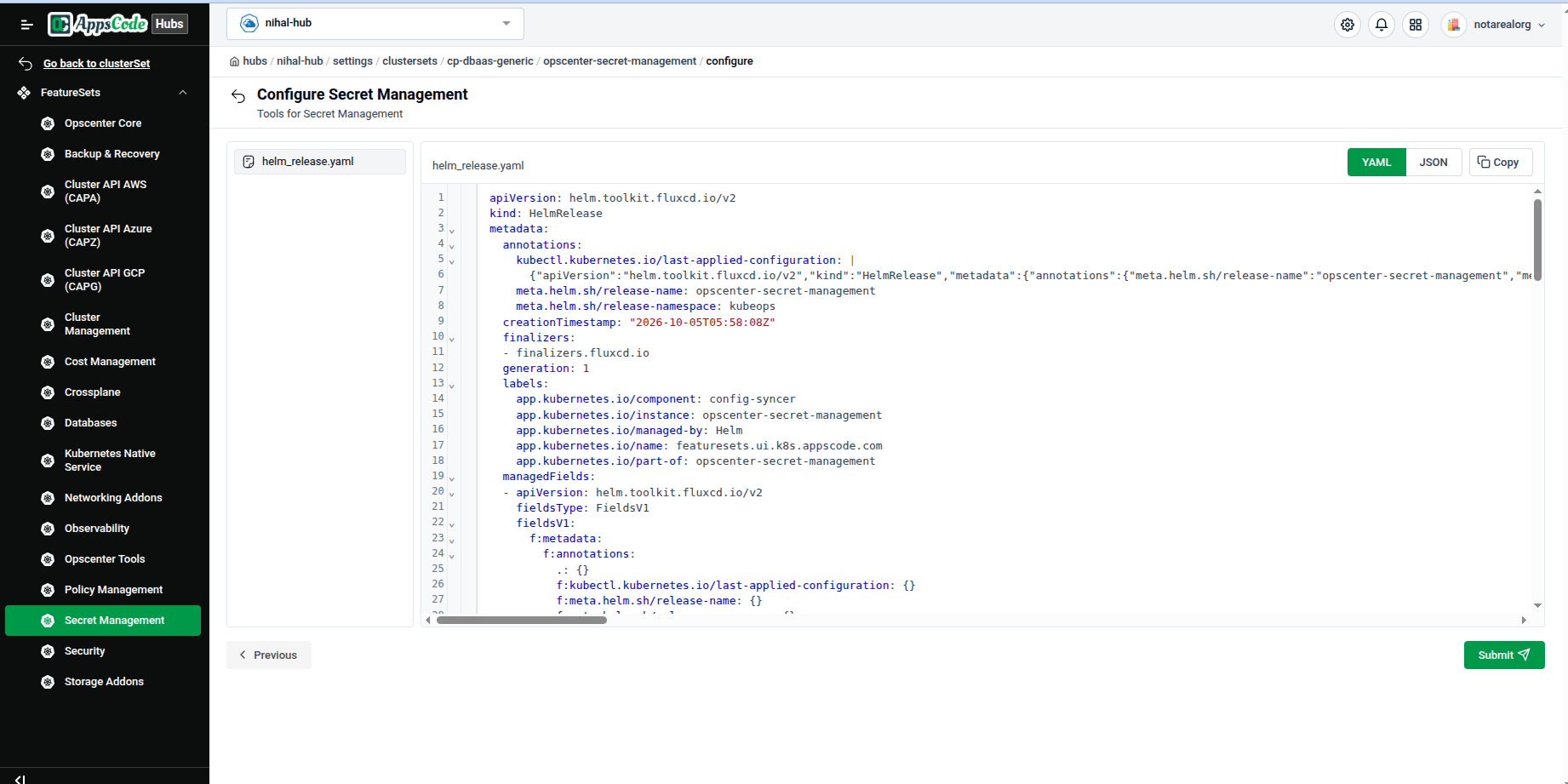
After a successful submit, the feature set page shows Configure and Disable in place of Enable. Use Configure to change the selected components later. Each enabled component is marked with a green check, for example Config Syncer.
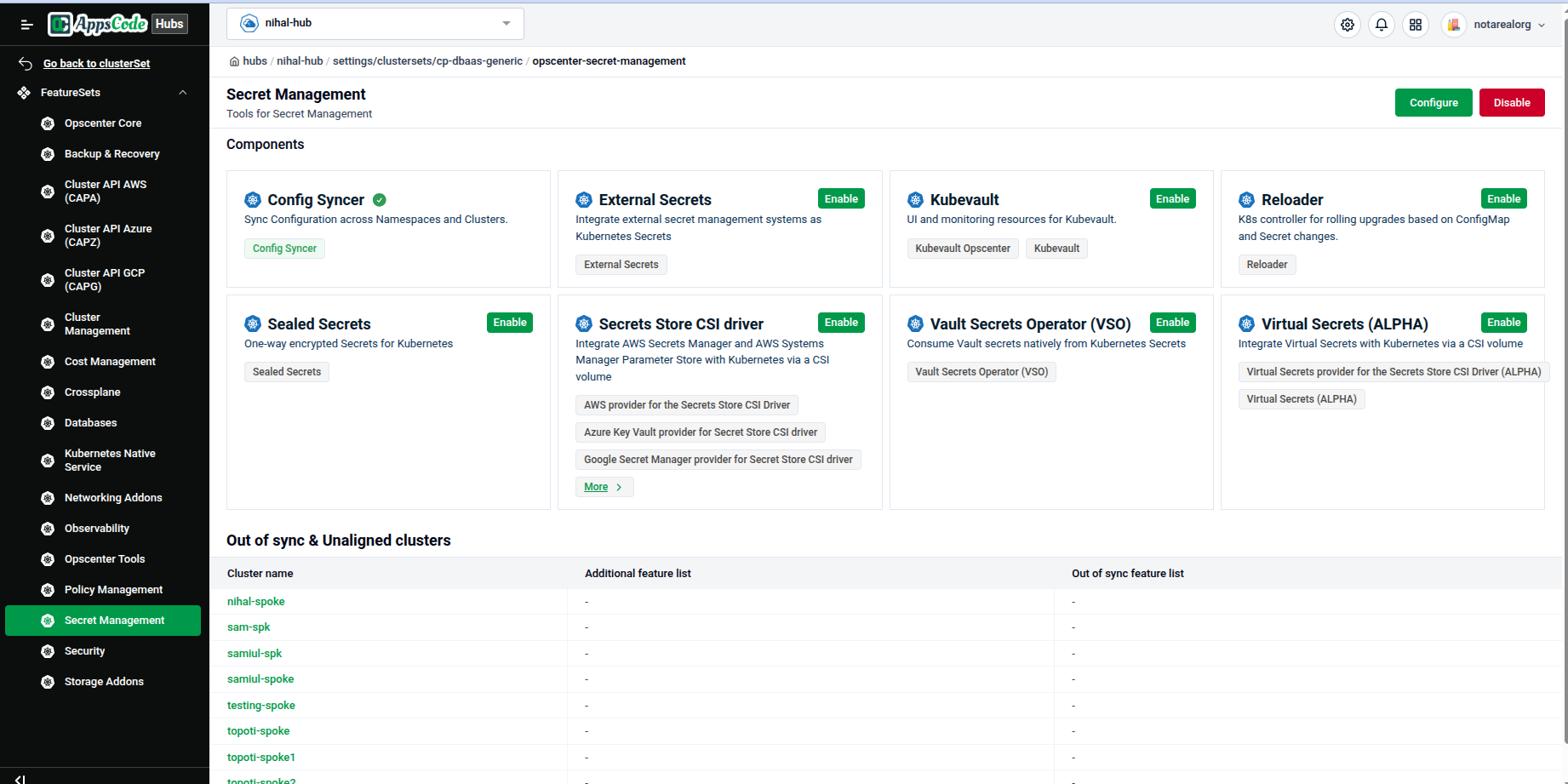
The Out of sync & Unaligned clusters table at the bottom of the page lists the spokes in the ClusterSet with two columns:
| Column | Meaning |
|---|---|
| Additional feature list | Features enabled on the spoke but not on the hub (unaligned) |
| Out of sync feature list | Hub features that have not been applied to the spoke yet |
A - in both columns means the spoke matches the hub. No Data Available (as before you enable) means there is nothing to compare yet. The change applies to all spoke clusters in the ClusterSet. See Cluster & Clusterset.
Note: Do not manage feature sets directly on a spoke cluster. Make feature changes from the hub so the two stay in sync.
Quick reference
| Task | How to do it |
|---|---|
| Enable a feature on a standalone (general) cluster | Cluster → Overview → Feature Sets → feature set |
| Enable a feature on the hub | Hub cluster → Overview → Feature Sets → feature set |
| Enable a feature on all spokes in a group | Hub UI → hub Overview → Cluster Sets → ClusterSet → feature set → Enable |
| Check whether spokes match the hub | ClusterSet → feature set → Out of sync & Unaligned clusters table |