


































Upgrade the KubeDB Platform: Management, Imported, and Spoke Clusters
Overview
This guide is the standard procedure for moving a self-hosted KubeDB Platform deployment to a new release. It covers upgrading every cluster tier and the checks to run before and after the upgrade. If something goes wrong, see Troubleshooting.
Architecture
                    ┌─────────────────────────────────┐
                    │       Management Cluster         │
                    │  (KubeDB Platform control plane) │
                    └────────────────┬────────────────┘
                                     │
                  ┌──────────────────┼──────────────────┐
                  │                  │                  │
   ┌──────────────▼──────┐  ┌────────▼────────┐   ┌─────▼──────────┐
   │ KubeDB Platform     │  │ Imported Cluster │  │ Spoke Cluster  │
   │ Cluster (management)│  │ (generic import) │  │ (generic import│
   └─────────────────────┘  └─────────────────┘   └────────────────┘
| Tier | What it is | Where you upgrade it |
|---|---|---|
| Management (hub) cluster | The cluster that runs the KubeDB Platform itself (the ace-installer release and the ace namespace). | Platform UI → Site Administration → ACE Upgrade |
| Spoke cluster | A cluster joined to a hub and grouped in a ClusterSet. | Hub UI → ClusterSet → spoke → Update ACE resources |
| Imported cluster | A cluster imported directly into the platform, without a hub. | Console → cluster → Settings → Update Version |
See Cluster Types & Feature Sets if you are not sure which tier a cluster belongs to.
Each tier is upgraded separately; the order matters:
- Run the Pre-checks and fix anything that is not healthy.
- Download the new installer values file.
- Upgrade the management cluster.
- Upgrade spoke clusters, one by one.
- Upgrade imported clusters, one by one.
- Update each ClusterSet after all of its spokes are upgraded.
- Run the Post-checks.
Prerequisites
- You can log in to appscode.com and switch to the organization that owns the installer.
- You are a site administrator of the KubeDB Platform.
- You have a working kubeconfig with cluster-admin access to the management cluster and to every imported and spoke cluster you plan to upgrade.
- You have a recent backup of the platform database (
ace-db). The platform archives it continuously when backup is configured; confirm the latest backup succeeded before you start.
Pre-checks
Complete every item before starting. Do not upgrade while any item fails — an upgrade on top of an unhealthy cluster is much harder to troubleshoot.
Versions known. Log in to appscode.com, switch to your organization, open your installer, click View Details, and note the current and target versions. Read the target release’s CHANGELOG.
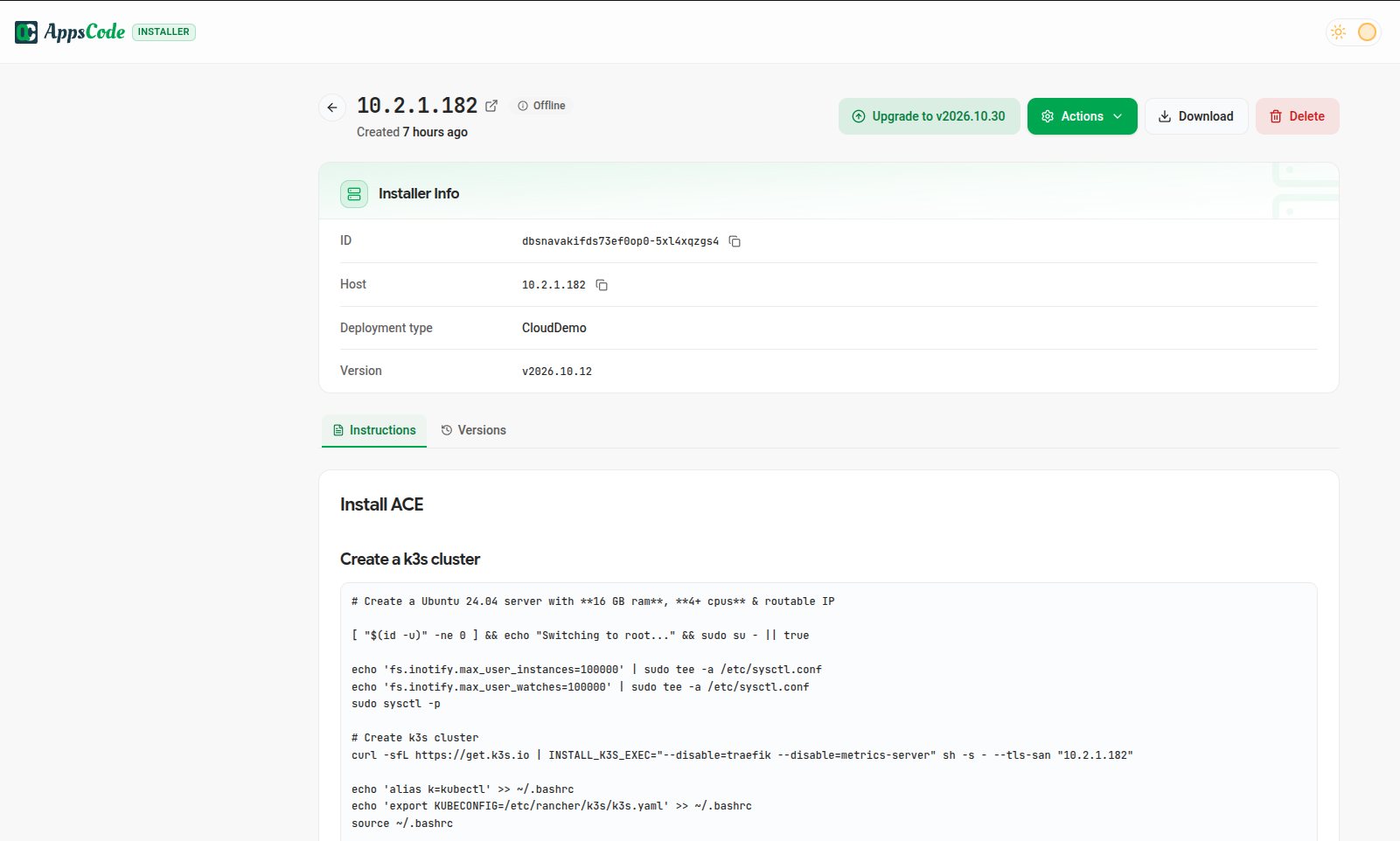
Management cluster on the current version. The
aceHelmRelease chart version matches the current version you recorded:helm list -A | grep -E 'ace-installer|opscenter-features' kubectl get hr ace -n kubeops -o jsonpath='{.spec.chart.spec.version}{"\n"}'Spoke versions known. On the management cluster, the
CURRENT VERSIONcolumn shows the version each spoke is running. Note every spoke that is not on the current version:kubectl get managedclusterprofilebinding -ANAMESPACE NAME STATUS CURRENT VERSION AGE ace-spoke ace-spoke v2026.10.30 4d21h remove-fix-1 remove-fix-1 v2026.10.30 88mTested on non-prod. The same upgrade was applied to a QA / non-prod environment and passed the Post-checks.
AppsCode notified. At least 72 hours ahead, with the maintenance window and the clusters involved.
All HelmReleases Ready on the management cluster and every spoke / imported cluster:
# Prints nothing when every HelmRelease is Ready
kubectl get helmreleases -A --no-headers | grep -v True
Flux controllers running:
kubectl get pods -n flux-systemAll spokes connected. On the hub, every
ManagedClustershowsJOINED=TrueandAVAILABLE=True:kubectl get managedclustersRemove or fix inactive clusters first (see Removing an Inactive Cluster).
No cluster import or removal in progress. Every cluster reports phase
Activethrough the API (see Using the API).
Keep a watch open during the upgrade:
kubectl get helmreleases -A -w
Upgrade Flow
Step 1 — Download the new installer values file
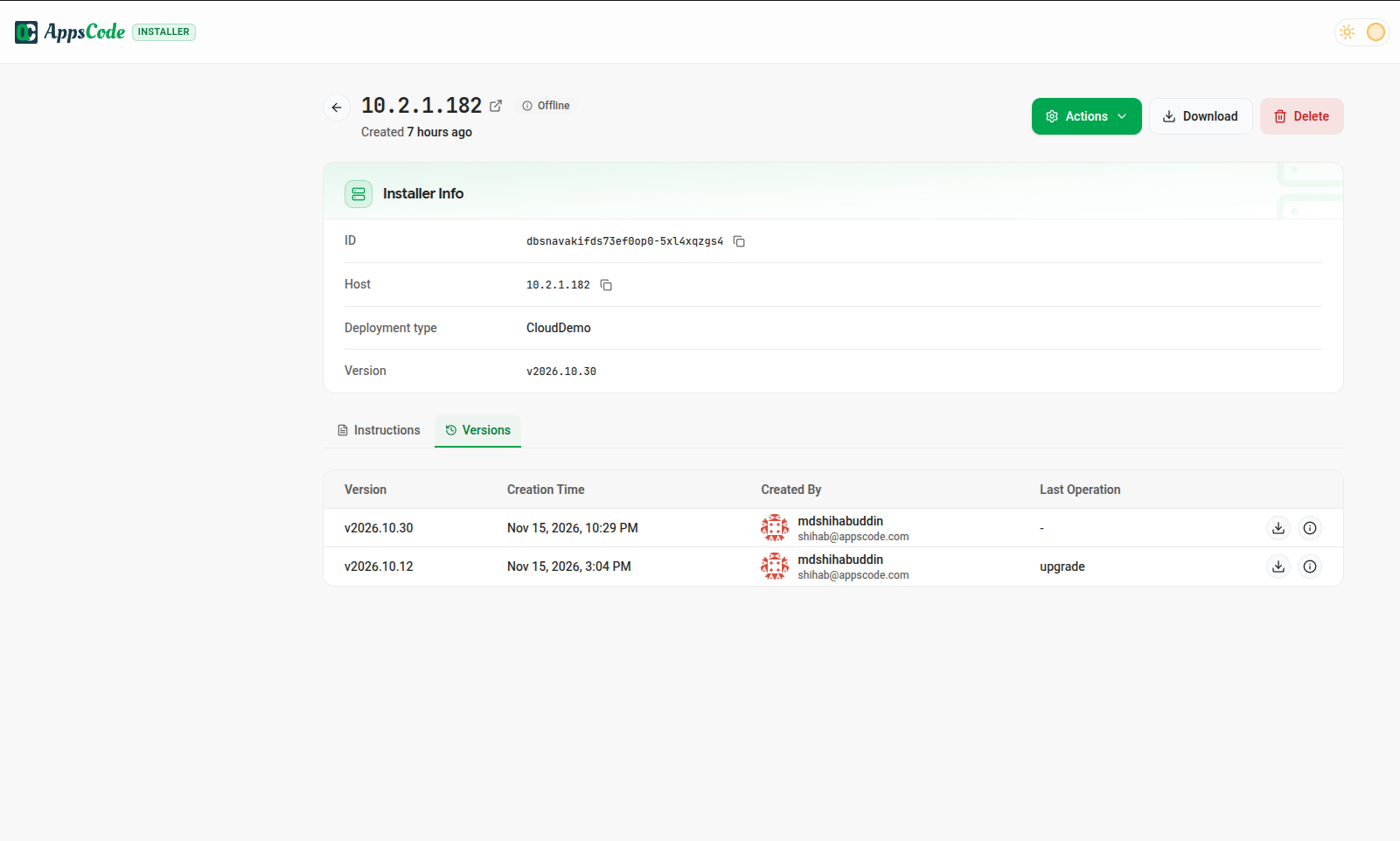
- On the installer page at appscode.com, click Upgrade to <x.y.z>, the target version.
- Wait for the installer page to show the target version.
- Click Download and save the values file.
# Optional: inspect the downloaded values file before applying
cat ~/Downloads/<target-version>.values.yaml
Step 2 — Upgrade the management cluster
- Log in to your self-hosted KubeDB Platform. If you are in the Console UI, switch to the Platform UI.
- Open your organization and go to Site Administration → ACE Upgrade.
- Click Upgrade Version and select the values file you downloaded in Step 1.
- Click Update Version.
The page shows the current version and the version being installed. The platform starts a
Kubernetes Job that upgrades the ace-installer release, which then rolls the HelmReleases
forward one by one.
# Monitor the upgrade job on the management cluster
kubectl get jobs -n ace -w

# Watch Helm releases roll forward
kubectl get helmreleases -A -w
Expected state: The target-version row shows Progressing while its components reconcile.
The upgrade takes several minutes. Verify the management cluster when it finishes:
helm list -A | grep -E 'ace-installer|opscenter-features'
kubectl get hr -n kubeops
kubectl get hr ace -n kubeops -o jsonpath='{.spec.chart.spec.version}{"\n"}'
The management cluster is upgraded when the ace HelmRelease shows the target version and every
HelmRelease in kubeops reports READY as True.
Step 3 — Upgrade spoke clusters
Spoke clusters are imported as generic DBaaS generally. Update them individually before updating the cluster set. Repeat these steps for each spoke.
In the Console, go to your organization and open the Hub Cluster.
Go to the KubeDB Platform / Hub UI.
Select the ClusterSet the spoke was imported into, for example Generic DBaaS.
In the Cluster list, select the spoke cluster.
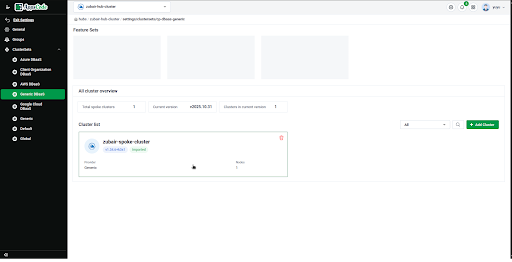
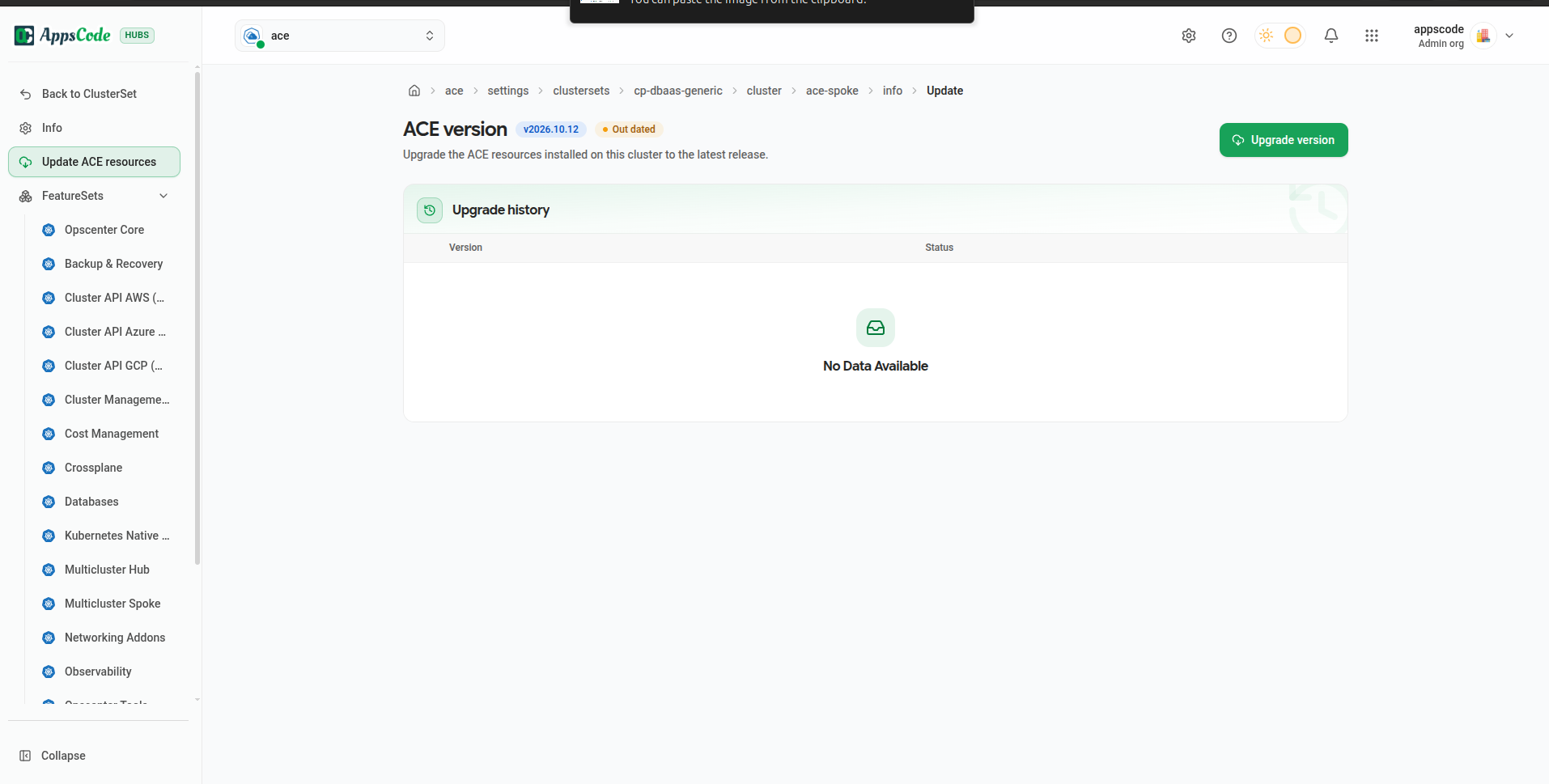
From the sidebar, open Update ACE resources.
On the ACE version page, click Upgrade version.
Confirm the target version in the dialog and click Upgrade.
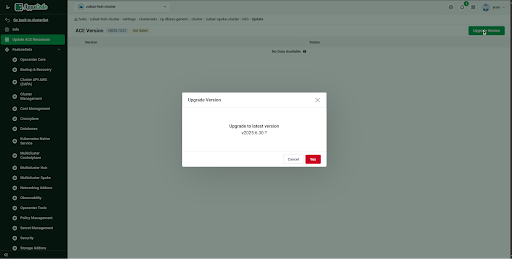
The cluster set manifest (which holds metadata about all spoke clusters) updates almost instantly. The underlying Helm releases take longer — wait for them to reconcile before moving on.
# On the management cluster: CURRENT VERSION shows the target version
kubectl get managedclusterprofilebinding -A

# On the spoke: watch the HelmReleases roll forward
kubectl get helmreleases -A -w --context <spoke-cluster-context>

# Wait for all pods to return to Running
kubectl get pods -A --context <spoke-cluster-context> | grep -vE 'Running|Completed'
The spoke is upgraded when CURRENT VERSION shows the target version and every HelmRelease on the
spoke is Ready.
Step 4 — Upgrade imported clusters
Repeat these steps for each imported cluster.
- In the Console, open the General Imported Cluster.
- Go to Settings.
- Click Update Version and confirm with Yes.
This path updates Helm releases directly (not via a cluster set), so progress is visible immediately.
kubectl get helmreleases -A -w --context <imported-cluster-context>
kubectl get pods -A --context <imported-cluster-context> | grep -vE 'Running|Completed'
The cluster is upgraded when every HelmRelease is Ready on the target version and all pods are
Running or Completed.
Step 5 — Update the ClusterSet
Update a ClusterSet only after every cluster in it is on the target version.
- In the Hub UI, open the ClusterSet, for example Generic DBaaS.
- Under All cluster overview, the Current version still shows the old version.
- Click Update Cluster Set and confirm.
# Confirm cluster set version
kubectl get clusterset -A
After the update, Current version shows the target version and no cluster is labelled unaligned.
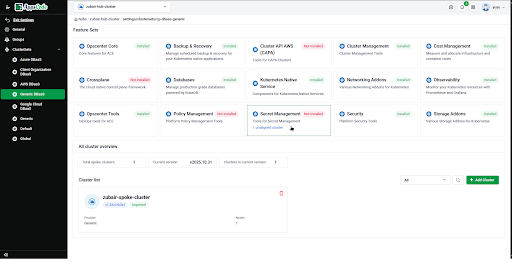
Step 6 — Verify
Run the Post-checks.
Post-checks
Run on the management cluster and on every spoke / imported cluster. The upgrade is complete only when every item passes.
- All HelmReleases Ready:
# Prints nothing when every HelmRelease is Ready kubectl get helmreleases -A --no-headers | grep -v True - All HelmReleases on the target chart version:
kubectl get helmreleases -A \ -o custom-columns=NAMESPACE:.metadata.namespace,NAME:.metadata.name,REVISION:.status.lastAttemptedRevision - No Helm release stuck in a pending state:
# Prints nothing when every release is deployed helm list -A --all --no-headers | grep -v deployed - All pods healthy:
kubectl get pods -A --no-headers | grep -vE 'Running|Completed' - All spokes connected. On the hub, every
ManagedClustershowsJOINED=TrueandAVAILABLE=True:kubectl get managedclusters - Every spoke on the target version in the
CURRENT VERSIONcolumn ofkubectl get managedclusterprofilebinding -A. - Cluster set updated (Step 5) and no longer shown as unaligned.
- Every cluster
Activethrough the API (see Using the API). - Databases reachable and reporting
Readyin the Console.
If any check fails, see Troubleshooting.
Using the API
The same checks can be scripted against the
Clusters (v2) API. Paths are relative to
https://<akp-host>/api/v1; send Authorization: token <YOUR_TOKEN>.
| Purpose | Call |
|---|---|
| List clusters | GET /clustersv2/{owner} |
| Status of one cluster | GET /clustersv2/{owner}/{cluster}/status |
| Import a cluster | POST /clustersv2/{owner}/import |
| Remove a cluster | POST /clustersv2/{owner}/{cluster}/remove |
| Force a reconcile of a feature’s HelmReleases | GET /clustersv2/{owner}/{cluster}/reconcile?features=<feature> |
Check the phase of every cluster:
api=https://<akp-host>/api/v1/clustersv2/<owner>
for c in $(curl -s -H "Authorization: token $TOKEN" "$api" | jq -r '.[].name'); do
  curl -s -H "Authorization: token $TOKEN" "$api/$c/status" \
    | jq -r '"\(.name)\t\(.status.response.phase)"'
done
Active means healthy. Inactive means the platform cannot reach the cluster (see
Removing an Inactive Cluster).
remove is asynchronous: call it once and poll status. See
Removing through the API.
To trigger and track the management-cluster upgrade itself through the API, see the Platform Upgrade API.
Lessons Learned
| Observation | Takeaway |
|---|---|
| One Helm release failed to update via the job | It had already reconciled from the cluster side — not always an error |
| Cluster set update is near-instant | It only patches a manifest, not the releases themselves — releases follow async |
| Search manager self-updated | Some components pull their version from the cluster operator, not the installer job |
| Upgrade order matters | Always update individual clusters before the cluster set |
| Ports need time after upgrade | Wait for all pods to reach Running before declaring success |
Quick Reference
appscode.com → Installer → Upgrade → Download values file
       ↓
Platform UI → Site Administration → ACE Upgrade → Update Version  (management cluster)
       ↓
Hub UI → ClusterSet → Spoke → Update ACE resources                (each spoke)
       ↓
Console → Imported Cluster → Settings → Update Version            (each imported cluster)
       ↓
Hub UI → ClusterSet → Update Cluster Set                          (each ClusterSet)
       ↓
Post-checks
No downtime during upgrade procedure — the platform performs rolling Helm release updates and most workloads stay running throughout.
Video Walkthrough
Related
- Troubleshooting — stuck reconciliation, failed HelmReleases, spoke and ClusterSet issues, removing clusters.
- Site Administration: KubeDB Platform Upgrade
- Upgrade Spoke — upgrade a single spoke from the Hub UI.
- Cluster & Clusterset — how ClusterSets group spokes.
- Platform Upgrade API — trigger and track upgrades through the API.