






































You are looking at the documentation of a prior release. To read the documentation of the latest release, please
visit here.
Deploying KubeDB Platform: Onprem Demo
Welcome to the KubeDB Platform’s “Onprem Demo” deployment! Follow these steps to deploy the KubeDB Platform in Onprem Demo mode.
Prerequisites
See Prerequisites in the Common Configuration guide for the minimum cluster requirements and the optional k3s setup note.
1. Visit the KubeDB Platform Self-Hosted Page
Navigate to KubeDB Platform Self-Hosted. Here you will find your previously generated self-hosted installers.
Click on the Create New Installer button to get started.
2. Choose Deployment Mode
Choose Deployment Type -> Onprem Demo and give it a name in the installer name section.
Before beginning the installation, identify your target infrastructure and cluster type.
- DNS & Connectivity:
- Enable DNS: Toggle this to allow the installer to manage or integrate with your DNS provider.
- Target IP: Provide the static IP addresses for your cluster nodes or load balancer.
- Cluster Type: Determine if you are installing on Red Hat OpenShift Cluster.
For Red Hat OpenShift clusters, see the Deploying KubeDB Platform in OpenShift Cluster guide.
3. Global Administrative Settings
See Global Administrative Settings in the Common Configuration guide for the System Admin account fields (display name, email, password, and initial organization).
4. Registry
See Registry in the Common Configuration guide for Docker registry proxies, Helm repositories, credentials, certs, and image pull secrets.
5. Monitoring
See Monitoring in the Common Configuration guide for Alertmanager email and webhook configuration.
6. Settings
Domain White List and Proxy Servers
See Domain White List and Proxy Servers in the Common Configuration guide for whitelisting domains, proxy servers, and login/logout URLs.
7. TLS
See TLS in the Common Configuration guide for configuring the certificate issuer (External or CA).
8. Ingress & Gateway
See Ingress & Gateway in the Common Configuration guide for exposing the platform via the Gateway API or standard Ingress.
9. NATS
See NATS in the Common Configuration guide for configuring the internal messaging system (expose method, replicas, and resources).
10. Self Management
See Self Management in the Common Configuration guide to enable or disable platform features.
11. Branding & UI Customization
See Branding & UI Customization in the Common Configuration guide to re-brand the platform interface.
12. Generate Installer and Documentation
Click the “Deploy” button to submit your information. KubeDB Platform will generate the installer and provide the necessary documentation.
13. Deploy KubeDB Platform
Follow the documentation provided by AppsCode to deploy the KubeDB Platform on your system.
14. Explore the Deployed Platform
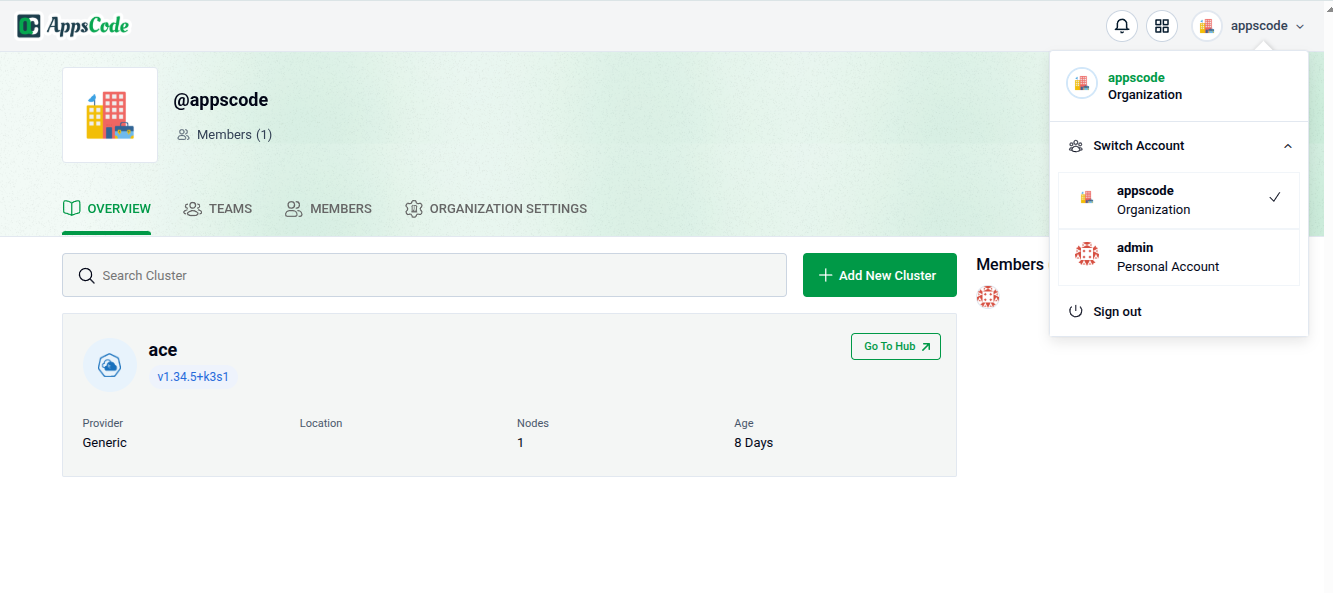
Once deployed, access the KubeDB Platform using the specified domain. Log in with the admin account credentials provided during the creation process.
Get Support
If you encounter any challenges during the deployment or have questions, reach out to KubeDB Platform support for assistance.
Congratulations! You have successfully deployed the KubeDB Platform in Onprem Demo mode. Explore the features and capabilities of the platform in your customized environment.